Operating the HP 7550A Pen Plotter #
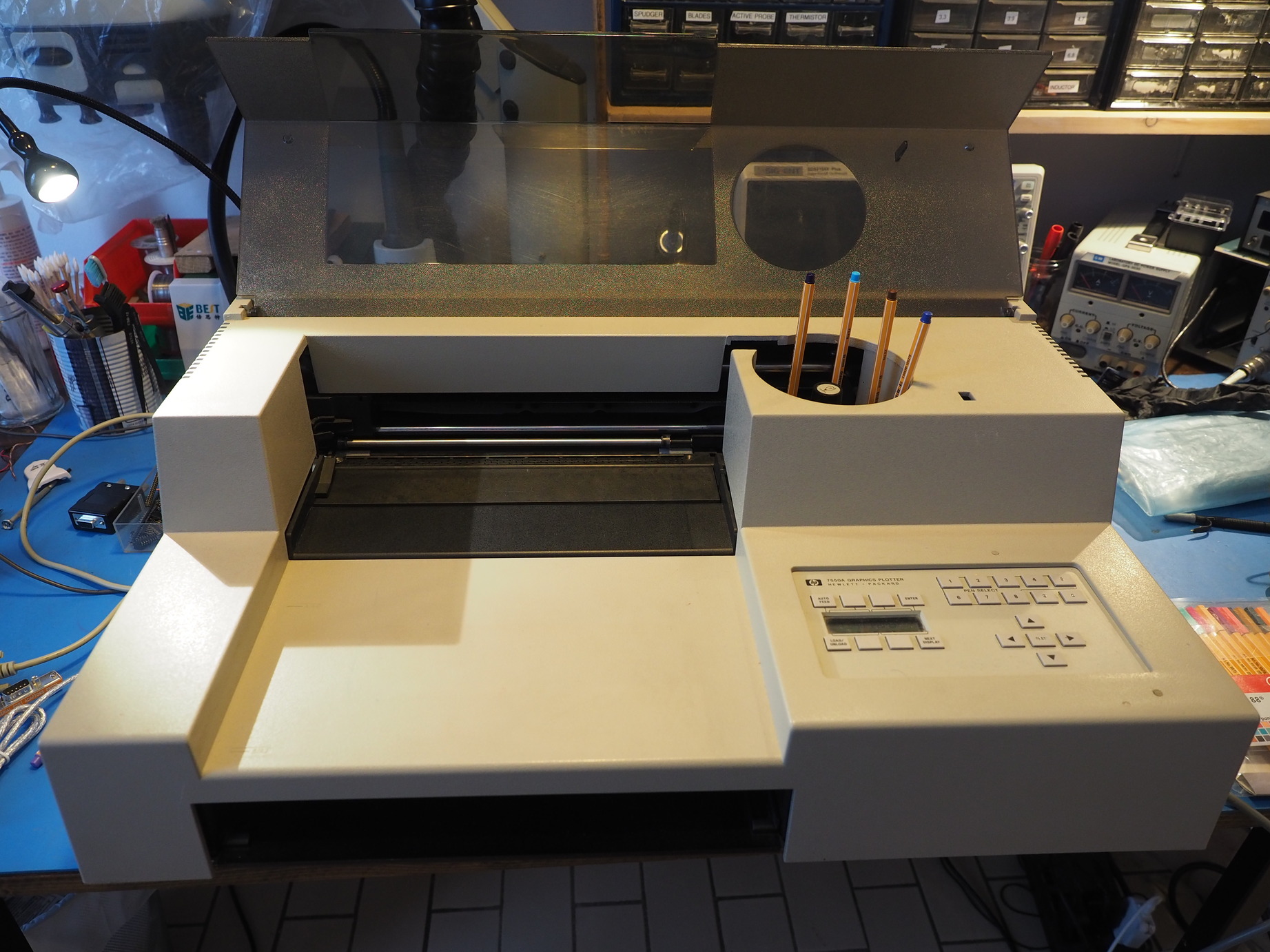
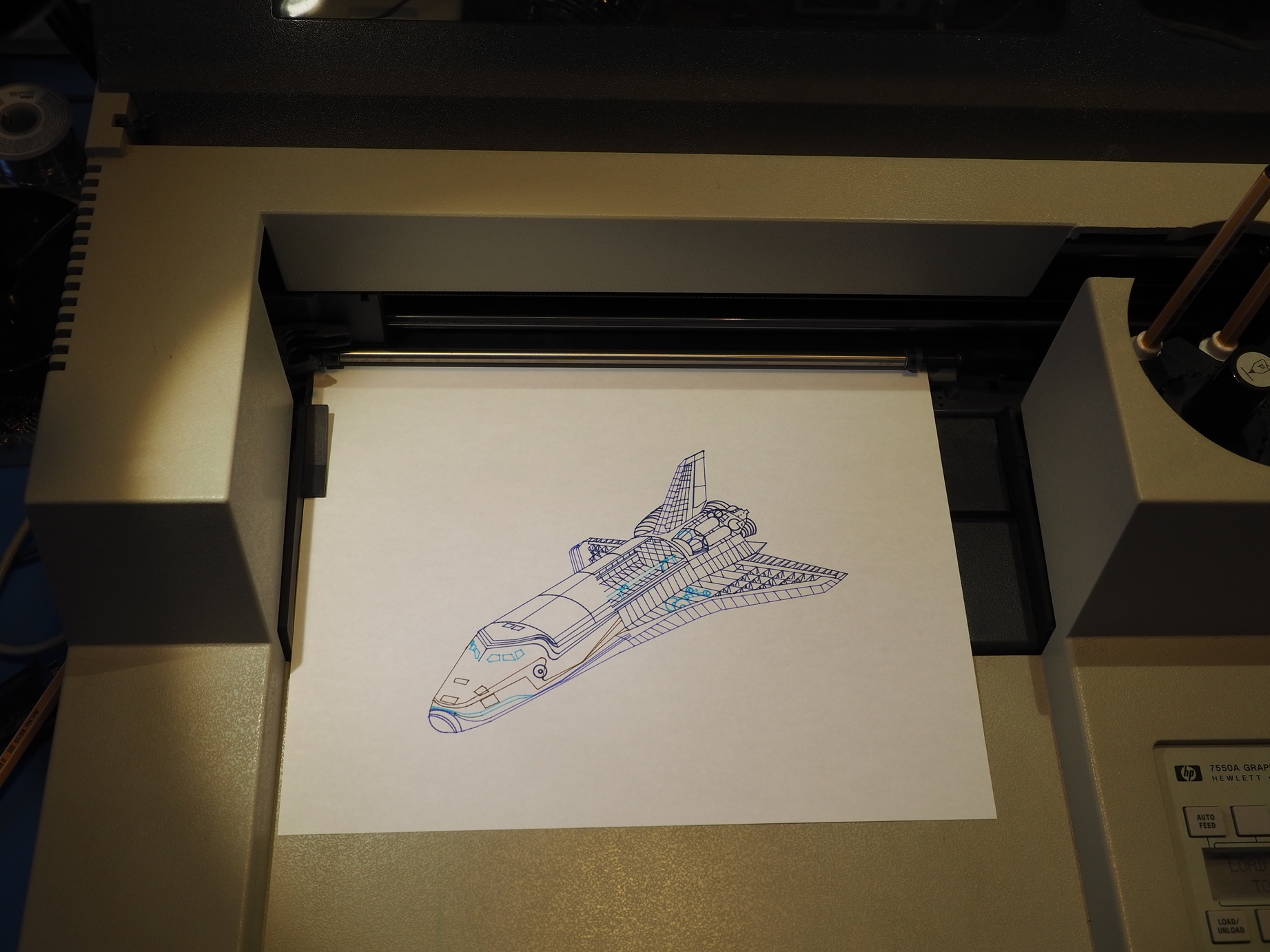
The HP 7550A is the king of 1980s desktop pen plotters. It supports up to 8 pens, an automatic paper feeder, and can reach 6g of acceleration. HP plotters were originally designed for business and engineering customers, and are long obsolete. They at least remain incredibly satisfying to watch. Today they can be used as a inexpensive plotter for generative art. The following post is a collection of notes on operating the HP 7550A for that purpose. I have also interfaced it over GPIB with my vintage HP testgear, but that is not the focus of this post.
Preparations #
The 7550A is designed to accept stubby HP plotter pens, which are no longer cheaply available. It is more desirable to use a variety of off the shelf pens. This can be accomplished with 3D printed adapters. Before attempting this, it is necessary to make a modification the 7550A plastic body to allow longer pens to pass from the carousel to the page. Unscrew the top plastic molding, and use a hacksaw to cut a path for the pens. Perform the cut after disassembling to avoid lodging plastic particles in the machine. It is also necessary to disable the lid sensor, this can be done by simply removing the spring from the interior plunger.
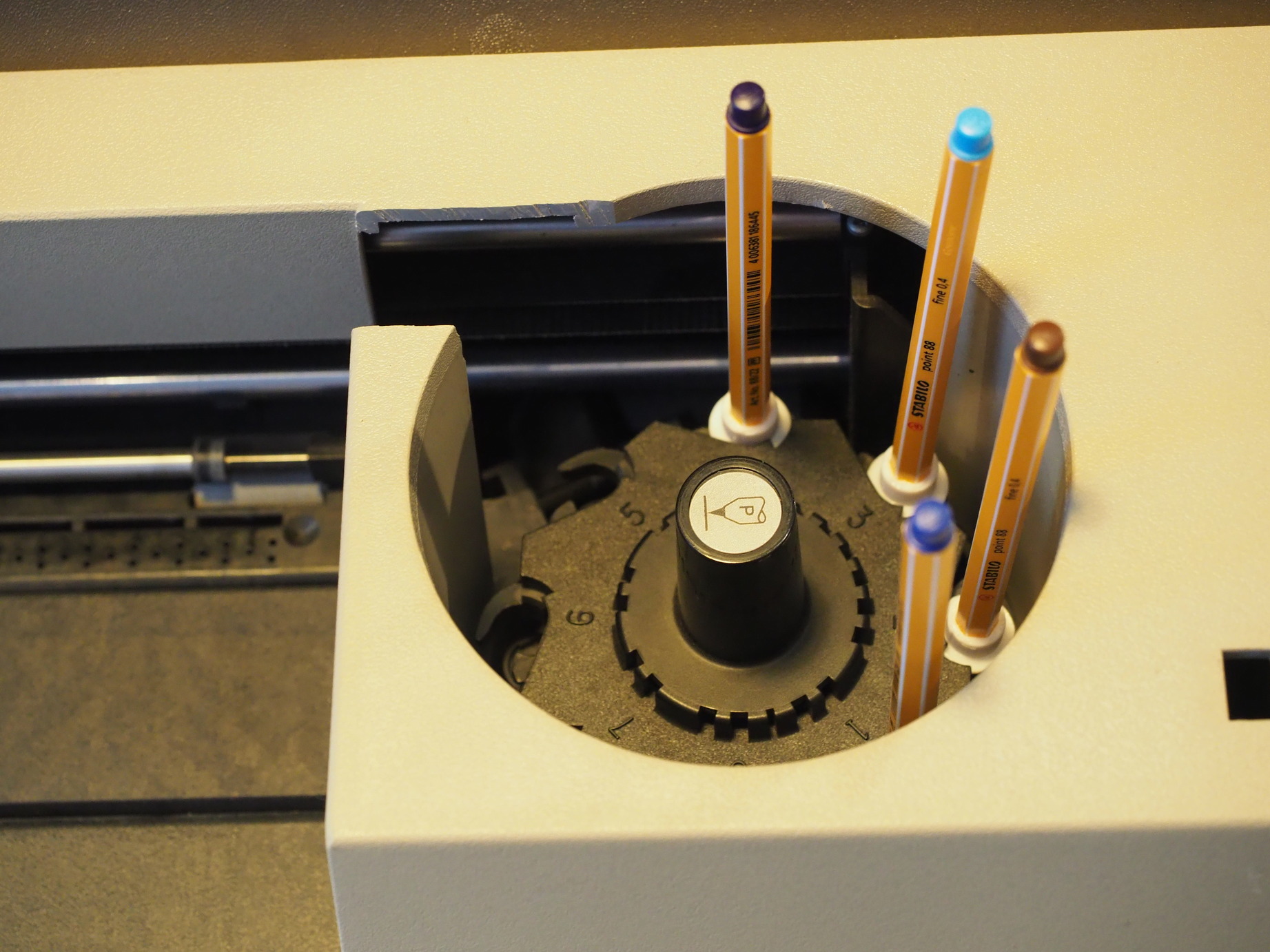
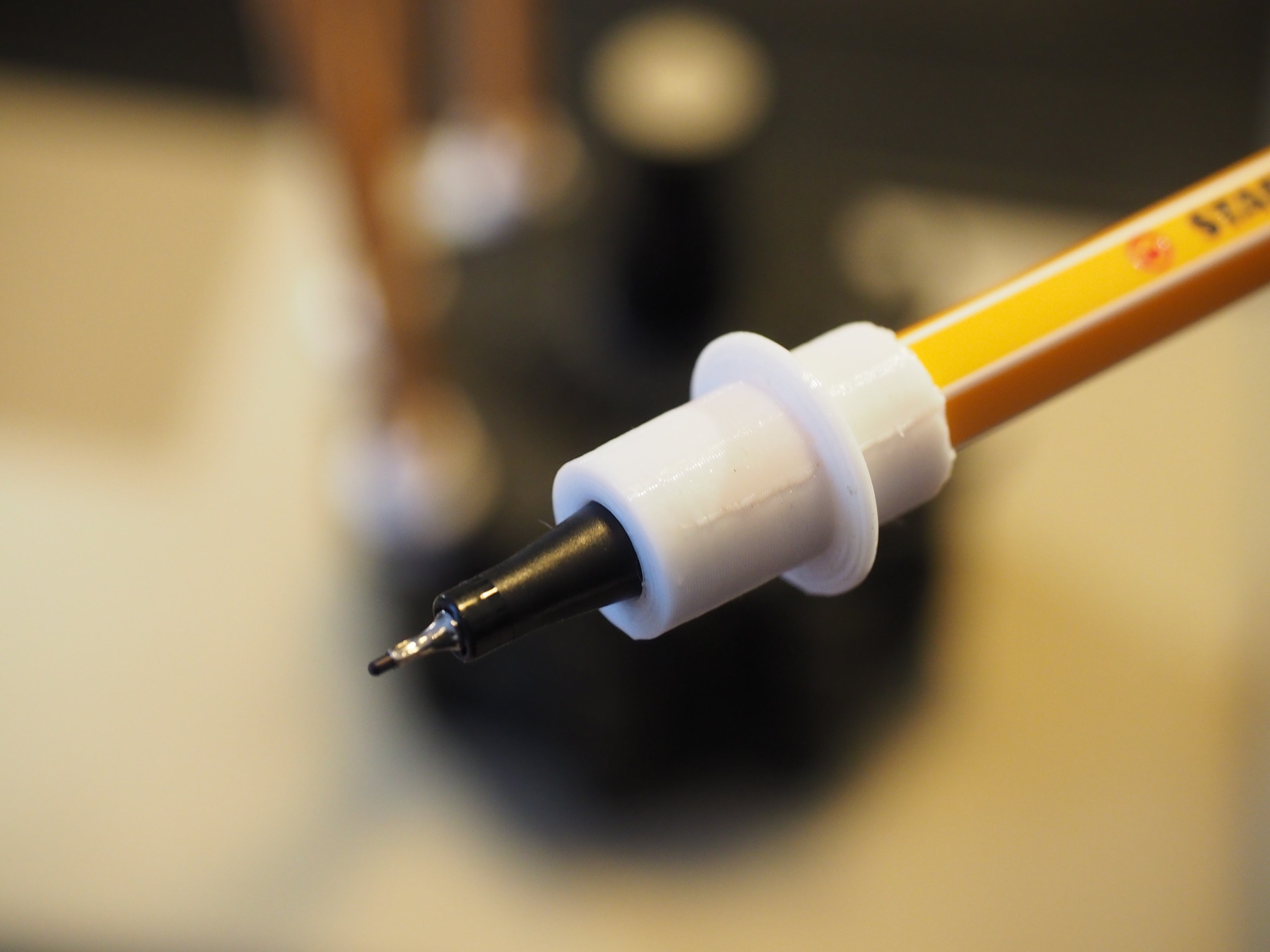
The pen adapters are easily 3D printed. This repository is a good starting point, containing models for several common pens. The OpenSCAD code may be customized to match your pens. Trial and error is necessary to get a snug fit. The adapters must also be easily removable so you can cap them after your print session. The rubber gasket in the carousel may not keep your pens tips from drying out long term.
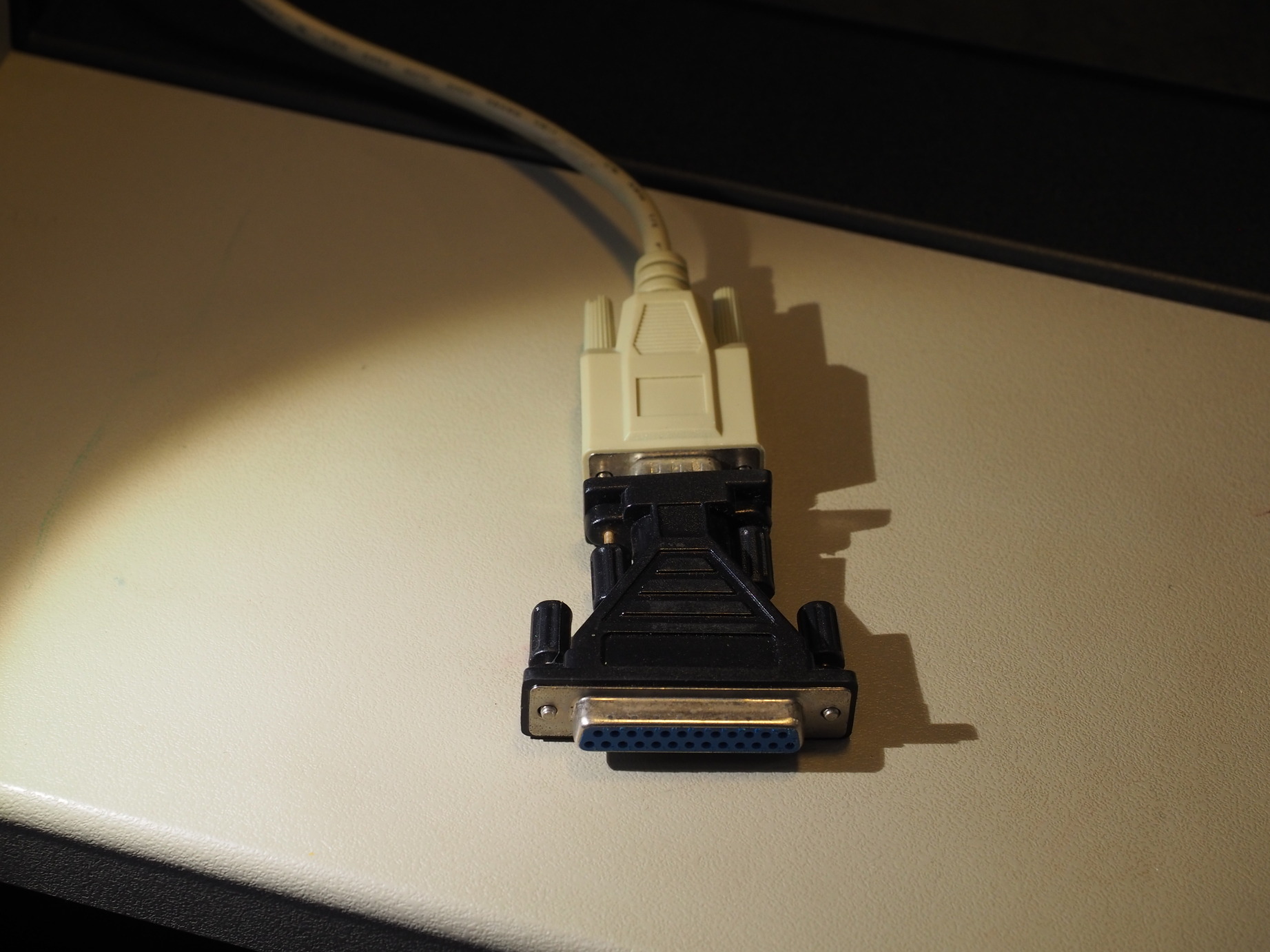
The rear of the printer accepts a 25-pin RS-232 and GPIB. Do not use the “Terminal” RS-232 on the rear, it is not relevant to this use case. Connecting to a modern PC is most convenient through a USB to 9-pin RS232 adapter. A 9-pin to 25-pin RS-232 adapter is used in this case.
The printer supports streaming HPGL code into the serial input. This is a generic CAM language for all HP plotters, and supported by plenty of software. Details on this language can be found in the HP programming manual, or in this HPGL Reference Guide. The printer also supports device specific commands for things like checking the various buffer levels. Luckily, all of this detail may be overlooked if the desire is simply to print SVG files exported from any application.
Firstly we need a convenient way to stream HPGL. The plotter must apply backpressure on the serial link during prints. The bitrate out of the print buffer varies wildly depending on the operation in progress, and pen speed. Chances are the default 1024 byte print buffer will not fit the entire plot. The printer may be operated in the following handshake modes for this purpose:
- None
- XON/XOFF
- Hardware
- EN/ACK
After probing the serial bus, and attempting several adapters, I had limited success with the software/hardware flow control options. The USB serial adapters don’t react gracefully when backpressure is asserted for long periods (>100ms). Instead it is possible to use a simple piece of software to read the print buffer depth, and send out the HPGL in chunks. After a chunk is sent, the printer is polled with a special command to read the buffer level. This ensures that the buffer is always fed, and never overflowed. The following Linux program may be used: hp7550a_stream.
Using the above program, first set your plotter serial settings to the following. Access the menu by pressing “Enter” followed by “Next Display”.
- Data Flow: Remote, Standalone
- Bypass: Bypass off
- Handshake: None, Direct
- Baud: 1200
- Duplex: Full
- Parity: 8-bits Odd
Now the 7550a_stream application may be used with any HPGL file:
$ 7555a_stream -d <serial device> -f <HPGL file>
This is an example HPGL file useful for testing: columbia.hpgl
vpype #
SVG is the standard vector graphics format supported by generative art programs. vpype is a python utility useful for conversion from SVG into HPGL. It is highly configurable, and even supports rendering previews.
For a simple conversion:
$ vpype read in.svg layout --fit-to-margins 4cm a4 write --device hp7550 --velocity 10 out.hpgl
For SVG images with many line segments or overlapping lines, additional flags can be used to simplify the output HPGL.
$ vpype read in.svg layout --fit-to-margins 4cm a4 linemerge --tolerance 0.01mm linesort \
  linesimplify -t 0.02mm write --device hp7550 --velocity 10 out.hpgl
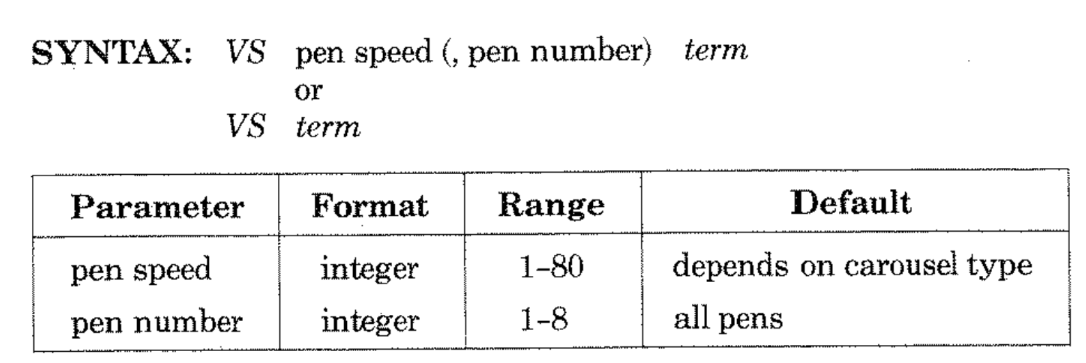
The velocity argument controls the speed for all the pens. Depending on the pen type, a slower velocity may improve the image quality. The range for this value on the HP 7550A is 1 to 80.
vsketch #
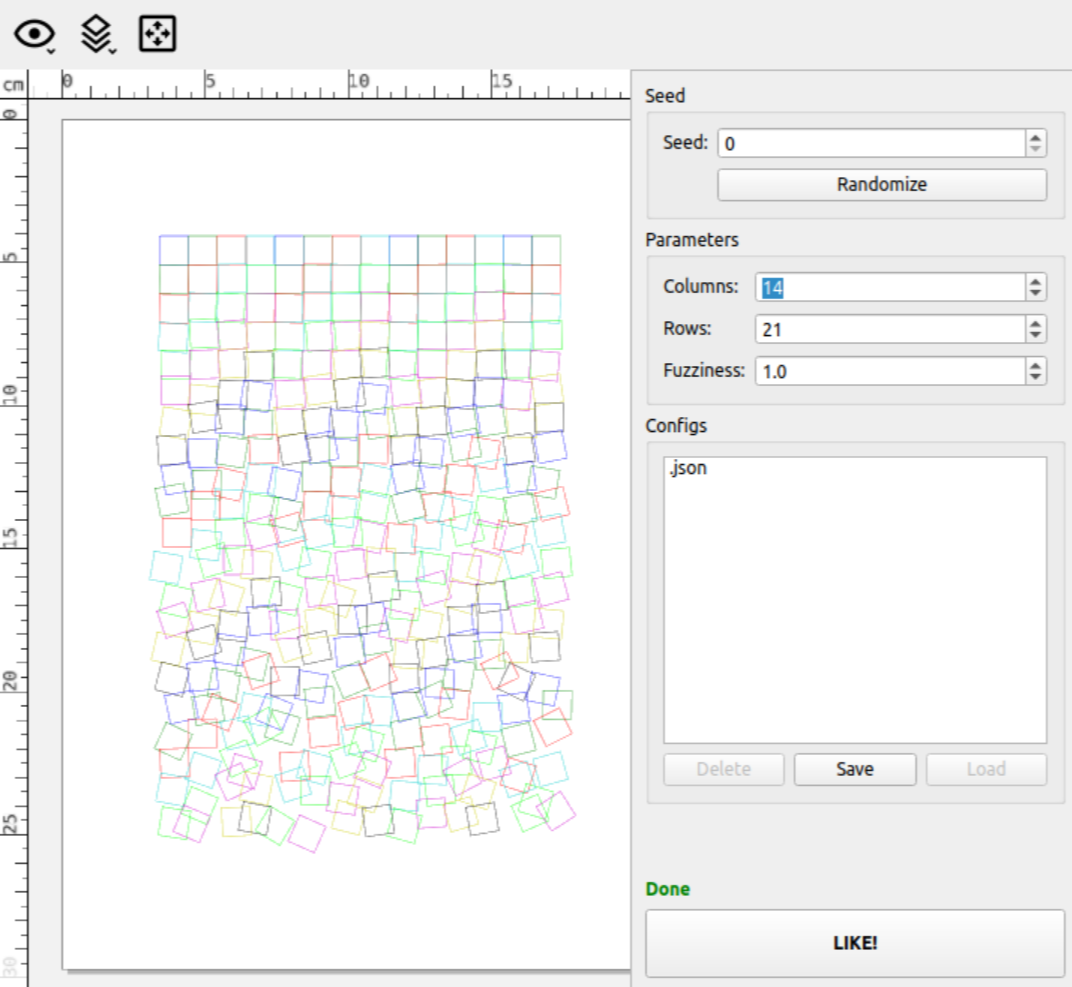
vsketch is a tool used for creating generative art programmed in Python. Adjustable parameters may be exposed as GUI elements, and the user can interact with them by executing the vsketch GUI.
Print of the above plot at minimum pen velocity.